|
| Back to Maxscript Home |
|
This tutorial will cover the basic interface of maxscript. Please be sure to view the maxscript help file. It can be accessed under the help menu \ MAXScript Reference. |
||
|
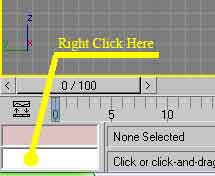
You can also use the Maxscript menu to open the listener. It is located right by help.
|
||
|
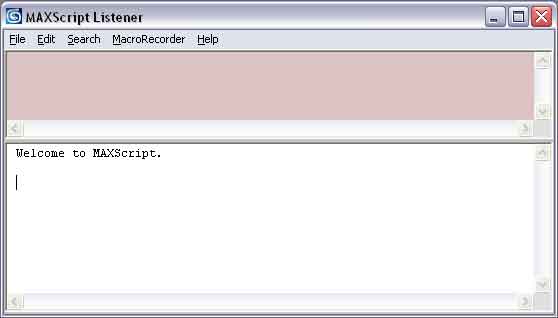
You should now see the Listener Window.
|
||
|
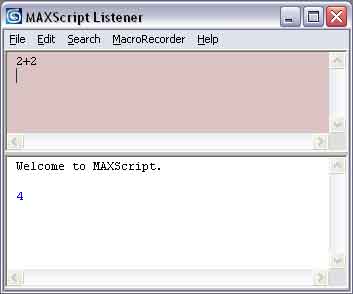
The listener window is a quick way to enter small test pieces of code. It is divided into two panes. The pink pane is where macrorecorder commands are printed. The white pane is where results of operations are displayed. I often enter commands into the pink section to keep what I do separate from the results.
You can also create objects in the same way. Try typing: Sphere() in the listener window. You should see a default sphere appear in the max view ports. Delete the sphere.
|
||
|
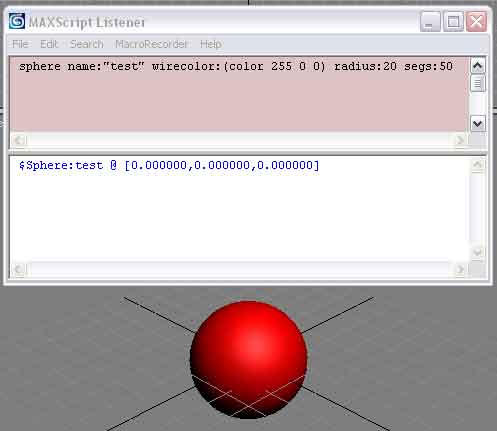
Many objects have creation parameters that you can access. To find out what these are, you use the showClass function. Try this in the listener window: showclass "sphere.*" This shows all the parameters of a sphere. So, now we can create a more customized sphere. sphere name:"test" wirecolor:(color 255 0 0) radius:20 segs:50 We now have a red sphere, named test, with a 20 unit radius and 50 segments.
We can also change values of existing objects. Type in: $test.radius = 10 You should see your sphere shrink to a radius of 10 units. The $ is a way to let Maxscript know you are referring to a node. So, we are saying change radius to 10 on the node named test. Try changing the number of segments. This concludes this tutorial. Remember to read the help file, and to experiment. Next we will write our first script. |
||